Application Scenarios
Manage resources by groups to enable data isolation.
VNNOX AD
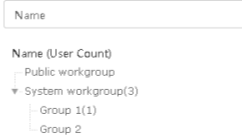
When a user in the system workgroup has logged in to the VNNOX AD, the Workgroups page is shown as Figure 6-1. When a user in the sub-workgroup has logged in, the system workgroup is not shown on the page.
In the figure below, the number 3 next to System workgroup indicates the system workgroup has 3 users. Similarly, the number 1 next to Group 1 indicates Group 1 has 1 user.
Figure 6-1 Workgroups-VNNOX AD
- The public workgroup and system workgroup are generated by default after successful registration. The system administrator (registered user) belongs to the system workgroup by default.
- The system administrator can transfer the data of any workgroup to the public workgroup.
- Only the system administrator can modify and delete the data in the public workgroup and sub-users only can view and use the data.
- Users can create sub-workgroups.
- The user can modify and delete the data in the workgroup the user belongs to and its sub-workgroups, as well as can share the data with other sub-workgroups.
- The data shared from other workgroups can be viewed and used only.
Figure 6-2 Data operation permission–system administrator
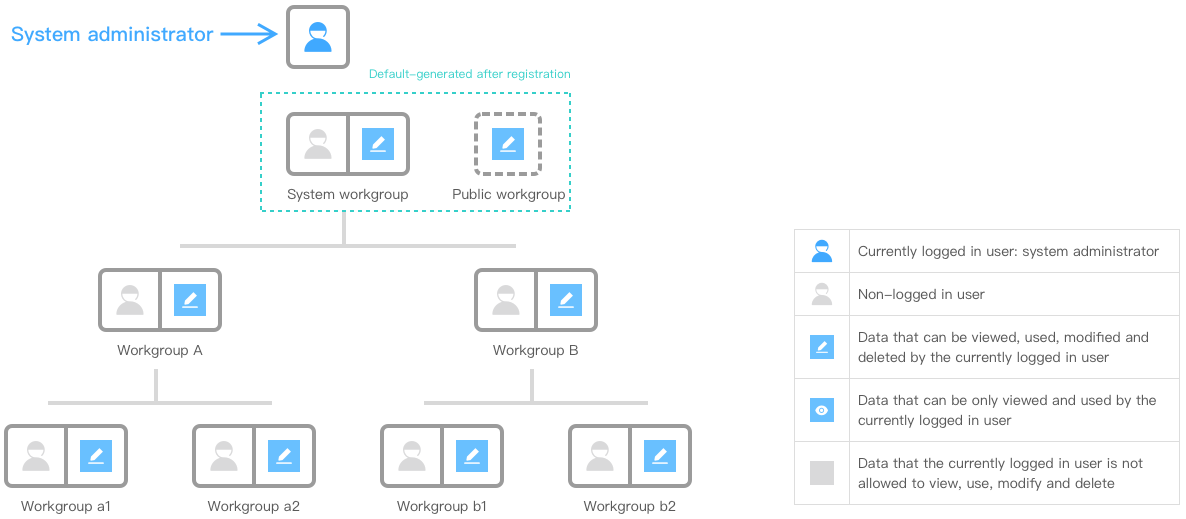
Figure 6-3 Data operation permission–sub-workgroup user

iCare
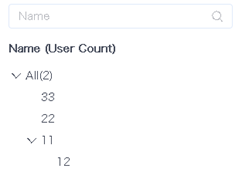
An All workgroup is created by default after registration. When users in the All workgroup log in to the system, the workgroup page is shown in Figure 6-4. When users in the sub-workgroups log in to the system, the All workgroup is not displayed.
As shown in the figure below, the number 2 next to the All workgroup denotes that the workgroup has 2 users.
Figure 6-4 Workgroups-iCare
| Expand | ||
|---|---|---|
| ||
Step 1 Choose Step 2 View workgroup tree, or search for a workgroup by name. |

| Expand | ||
|---|---|---|
| ||
Up to 5 levels of workgroups can be created in VNNOX. Step 1 Choose Step 2 Click a workgroup name and click New. Step 3 Enter a workgroup name and click OK. |
| Expand | ||
|---|---|---|
| ||
VNNOX allows users to change the attributes of sub-workgroups. Step 1 Choose Step 2 Click a sub-workgroup name and click Edit. Step 3 Change the sub-workgroup name and click OK. |
| Expand | ||
|---|---|---|
| ||
VNNOX allows users to delete sub-workgroups. Step 1 Choose Step 2 Click a sub-workgroup name and click Delete. Step 3 Click OK in the displayed dialog box. |